SMS appointment reminders: templates and setup in Meety

An SMS reminder should tell clients when to arrive and where to find their booking. In Meety, you choose when to send it, write your own text and add a booking link. The system fills in the business name, date and time. You do not have to send each reminder by hand.
Timing matters for salons, massage businesses and Pilates studios alike. If a client cannot attend, an earlier reminder gives them time to release their place. You see the change in your calendar.
When to send an SMS reminder
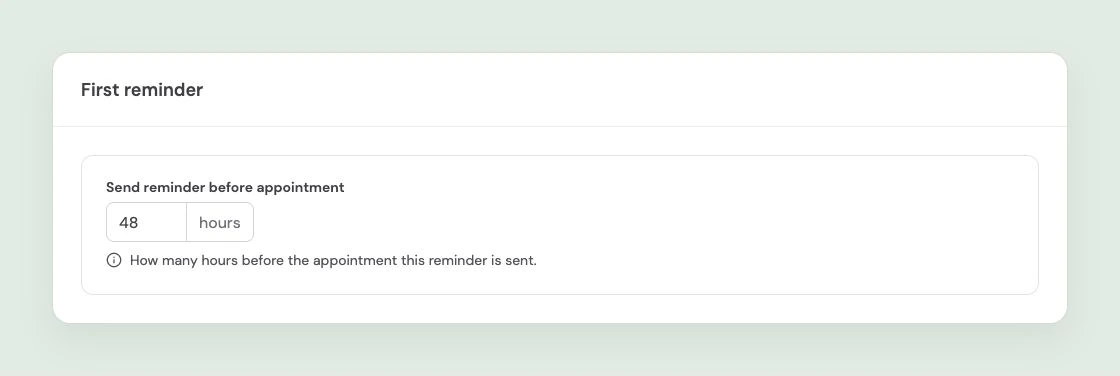
Send the first reminder before your free-cancellation deadline. If clients can cancel free of charge up to 24 hours before the appointment, you could remind them 48 hours before their visit. The message reaches them while they still have time to act.
Meety supports two reminders, each 1 to 168 hours before the appointment. Choose email, SMS or both channels for each one. The default times are 24 hours and 1 hour; you can change them.
| Situation | Example first reminder | Second reminder |
|---|---|---|
| A regular visit with no cancellation fee | 24 hours before the appointment | 1 hour before, if useful |
| Free cancellation up to 24 hours before the appointment | 48 hours before the appointment | A short reminder 1 hour before |
| A longer service or a class with limited places | Before your free-cancellation deadline | As appropriate for the visit |
You do not always need a second message. One reminder the day before may be enough for your business. For a longer appointment, an earlier email followed by a short SMS before the visit can be useful.
Three SMS templates for your reminders
You can edit the text of automatic SMS reminders directly in Meety. The templates below use placeholders the system supports. Paste one into the SMS text field and adjust the tone to suit your business.
A simple appointment reminder
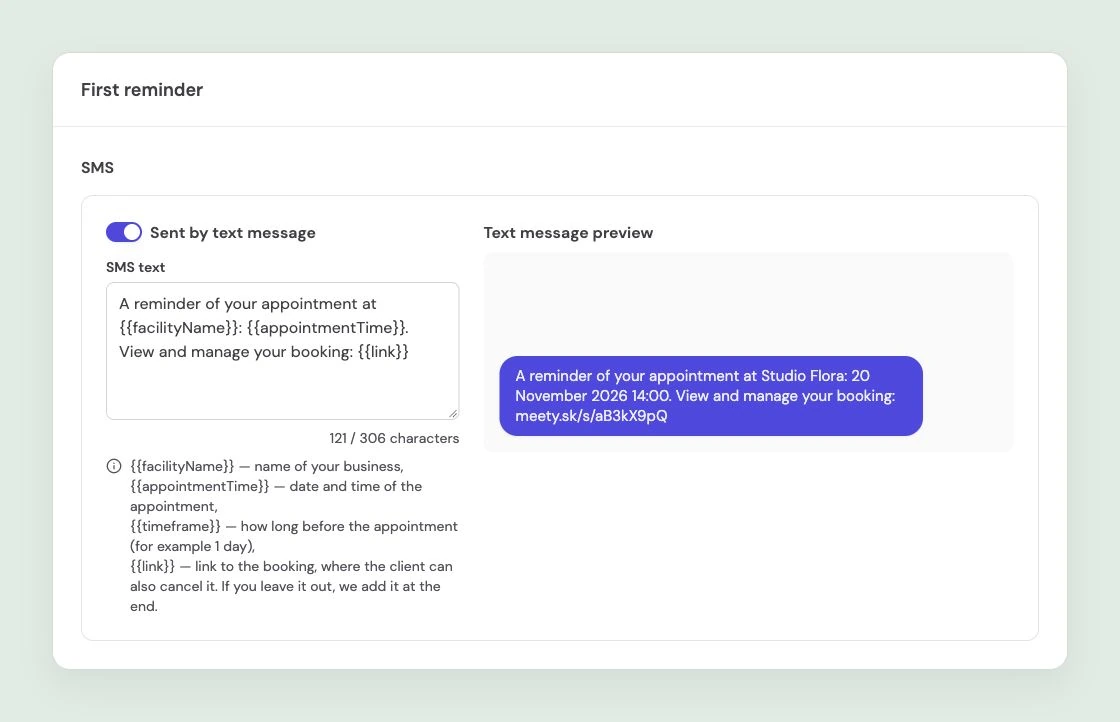
A reminder of your appointment at {{facilityName}}: {{appointmentTime}}. View and manage your booking: {{link}}
This works as a first reminder. The client sees your business name, their appointment time and a link to their booking. They do not have to search through earlier confirmations.
A reminder before the free-cancellation deadline
We look forward to seeing you at {{facilityName}}: {{appointmentTime}}. Free cancellation is available up to 24 hours before your appointment: {{link}}
Use this template if your policy actually allows free cancellation up to 24 hours before the appointment. Sending it 48 hours before gives the client time to decide. If you use a different deadline, change the number of hours in the text too.
A short second reminder
See you soon at {{facilityName}}: {{appointmentTime}}. Your appointment details: {{link}}
The second message can be brief. Its job is to remind the client of their approaching visit, for example an hour before it starts.
What Meety fills in for you
You do not have to replace the date or link for every client. Use these placeholders in your text:
| Placeholder | What the client sees |
|---|---|
{{facilityName}} |
Your business name |
{{appointmentTime}} |
The booking date and time |
{{timeframe}} |
Time until the appointment, such as one day |
{{link}} |
A short link to that specific booking |
If you leave {{link}} out of your custom text, Meety adds the link to the end of the message. Clients use it to open and manage their booking according to your settings.
The SMS wording does not change your cancellation policy. If free cancellation ends 24 hours before the appointment, a link in a later reminder does not extend that deadline. Payment and cancellation rules are configured separately in Meety. Our guide to deposits and upfront payments explains these options.
How to set up automatic SMS reminders
- Open Marketing → Communication.
- Click Edit on First reminder and choose when to send it.
- Enable Send SMS Message. Add your own wording in SMS text or keep the prepared message.
- Save your settings. If you also want a second reminder, configure it on Second reminder.
Meety displays a preview and the message length. The preview fills in the business name, appointment time and link automatically, so you can see the resulting message.
SMS reminders are available on Solo and Premium plans with an active SMS plan. The booking must include the client's phone number. Activate the SMS plan under Business Settings → SMS Notifications. Messages are billed separately based on usage. See the SMS notifications tutorial for activation details.
When a client releases their place
A reminder and a simple way to cancel help you find out about a change earlier. With the waitlist enabled, Meety can notify suitable people about the opening and send them a booking link. You do not have to call them one by one.
For Pilates and group classes, this gives someone who missed out on a full class a chance to book. For an individual service, it is a free appointment in your calendar. The waitlist guide explains notification settings.
If a client still misses their visit after a reminder, you can mark the booking as No-show. The visit remains in your Meety analytics. See our guide to reducing missed appointments for other ways to prevent them.
Frequently asked questions about SMS reminders
Can I write my own SMS reminder text?
Yes. In Meety, you can edit the text of both the first and second automatic SMS reminders. The system fills in the business name, appointment time and link using placeholders.
Can clients cancel a booking through an SMS?
They open the link to their specific booking from the SMS. Whether they can cancel, and under what conditions, depends on your business settings.
Do I have to add the link to every message manually?
No. Use the {{link}} placeholder. If you leave it out of your custom text, Meety adds the link to the end automatically.
When should I send a reminder with a 24-hour free-cancellation deadline?
You could send the first reminder 48 hours before the appointment. The client then has time to act before the free-cancellation deadline. You can send a second reminder closer to the visit.
How many reminders can I set up?
Two. For each, choose a time from 1 to 168 hours before the appointment and select email, SMS or both channels.
What if the client has no phone number?
They will not receive an SMS. If their email address is recorded and email reminders are enabled, Meety sends them an email.
Are SMS messages included in my Meety subscription?
SMS messages are billed separately based on usage. You need a Solo or Premium plan and an active SMS plan to send them.
Automatic reminders in your own words
Choose the time, channel and wording. Meety connects them to the bookings in your calendar and handles sending. Your reminders can sound like you, without writing messages to clients every day.